
This checklist walks an Admin through giving a new board member the access they need, in order: confirm the board member has a login, create a Sub-Admin role, set the access level, and then add the board member to meetings, committees, and documents. In Classic, board members get their administrative access through Sub-Admin roles, so the role you create in Step 3 is what makes someone a working board member on your site.
Only a full Admin can create Sub-Admin roles and assign members to them.
Step 1: Confirm the Board Member Is a Member With a Login
A board member must exist as a member before you can assign a role. Each member needs a unique email address.
- Click Membership in the left menu, then click Members.
- Search for the person. If the person is not in the list, click Members Actions, then click +Add New Member, fill in the required fields, check Email this Member to set password, and click Save.
- If the person is already a member who has never logged in, the Last Login column shows N/A. Send a set-password link so the person can log in.
For more detail, see Enter Member Data Manually, How do I import members and households?, How do I send a password reset link to a single member?, and How can an admin change a member's email address?.
Step 2: Decide What the Board Member Needs to Manage
A Sub-Admin role is a named set of features. A member can hold only one Sub-Admin role at a time, so decide on the full list of features before you create the role. You can choose from these features:
- Amenities
- Boardroom
- Calendars
- Committees
- Custom Forms
- Document Repository
- Events
- Help Desk
- Member Form
- Members
- Newsfeed
- Site Setup
- Sponsorships
- Surveys and Polls
- Ticketing System
- Violations
A Full-Access Sub-Admin can work on every item in a feature. A Limited-Access Sub-Admin can work only on the items you assign to them one at a time, such as one document folder or one form.
For more detail, see What do I need to know about sub-admin roles?.
Step 3: Create the Sub-Admin Role
- Click Membership in the left menu, then click Sub-Admin Roles.
- Click New Role.
- Enter a Name and a Description. Both are required. Use a name that says what the role is for, such as the board position.
- Check the box next to each feature the role should include.
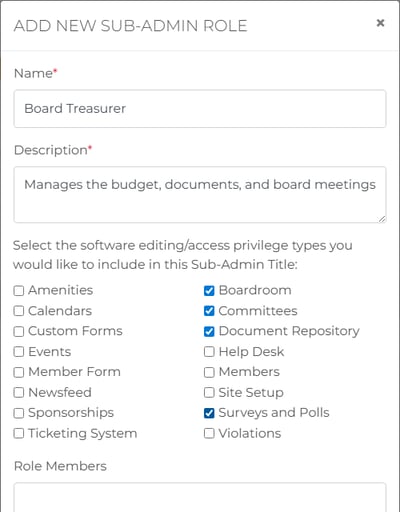
- In Role Members, click the field and type the board member's name, then select the member from the list.
- Click View Summary to review your choices, then click Save Sub-Admin.
For more detail, see Create a Sub-Admin Role.
Step 4: Set Full Access or Limited Access
When the role includes features that offer both access levels, the Sub-Admin Access Management window opens right after you click Save Sub-Admin. Each feature starts on Limited Access. Select Full Access for every feature the board member should manage completely, then click Save.
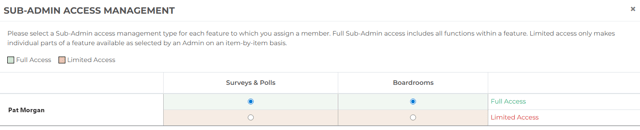
Choose Limited Access when the board member should work on only certain items. For each item, open it, click Actions, click Access Management, check the board member's name, and click Save.
For more detail, see Create Full-Access or Limited-Access Sub-Admin Roles.
Step 5: Confirm the Role
- On the Sub-Admin Roles page, find the new role. The Members column shows how many members hold it.
- Click View All Sub-Admins to see each Sub-Admin with their role and privileges.
- Ask the new board member to log in and confirm they can open the features you assigned.
For more detail, see View Members Assigned to a Sub-Admin Role and Edit a Sub-Admin Role.
Step 6: Add the Board Member to Boardroom Meetings
The Meeting Organizer and Boardroom Manager(s) lists on a boardroom meeting include only members with administrative access. A Sub-Admin with Full Access to Boardroom appears in those lists, so complete Step 4 first. Invited Attendees can be any member.
- Click Membership in the left menu, then click Boardroom.
- To add the board member to a meeting that already exists, click the number in the MGR column to manage managers (or the ATD column to manage attendees), choose the board member from the Add dropdown, and click Save.
- To include the board member in a new meeting, click Schedule New Meeting and choose them as the Meeting Organizer, a Boardroom Manager, or an invited attendee.
For more detail, see Overview of Boardroom Meetings, Schedule a Boardroom Meeting, View, Add, and Delete Boardroom Meeting Managers, and View, Add, and Delete Boardroom Meeting Attendees.
Step 7: Add the Board Member to Committees
If the board member leads or sits on a committee, open Membership, then Committees, and manage the committee's members from there. The Committees list shows each committee's leaders and member count.
For more detail, see An Overview of the Committees Feature, How do I create a committee?, and How can I manage a committee and its members?.
Step 8: Give Access to Board Documents
If the Document Repository is part of the role, a Full-Access board member can work with every folder. For a Limited-Access board member, open each folder the person needs, click Actions, click Access Management, check the person's name, and click Save. Only an Admin or a Full-Access Sub-Admin can create new folders.
For more detail, see An Overview of the Documents Feature, Setting Up a Document Repository, and Create a Folder.
Step 9: Update Your Website
If your website has a page that lists your board members, update it so the new board member appears. Click Manage Site in the left menu, click Site Setup, and edit the page.
For more detail, see Edit Page Content.
When a Board Member Leaves the Board
- Click Membership, then Sub-Admin Roles.
- Click the Edit icon (pencil) on the role, remove the person from Role Members, and save.
A role that still has members assigned cannot be deleted. Remove the members first, or deactivate the role instead.