
Also searched as: update a member email, edit member email, member has a new email address, wrong email on member profile, member confirm email change
As an Admin, you can change the email address on any member's profile from the Members list, whether or not the member has ever logged in. This changes one member at a time.
Steps
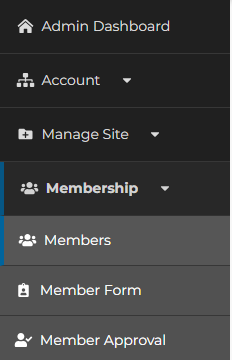
- Click the Membership tab on the vertical Dashboard menu at the left side of the screen, then click Members.
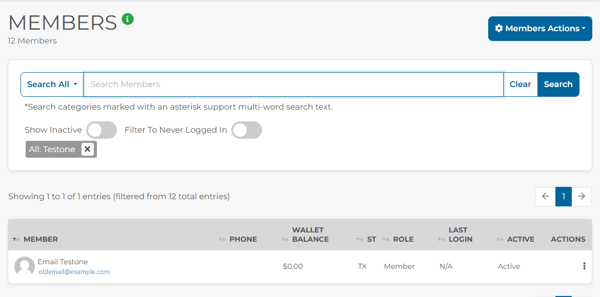
- Find the member. Type the member’s name in the search box and click Search. (See Filter the Member List for more search options.)
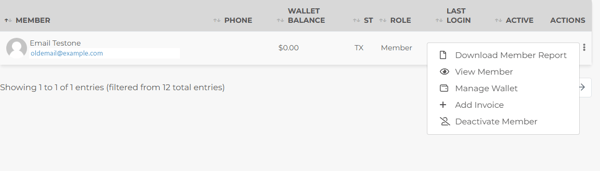
- In that member’s row, click the three-dot Actions icon at the far right, then click View Member.
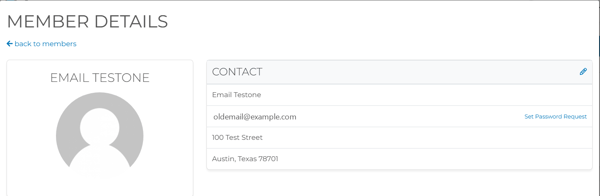
- In the Contact section of Member Details, click the pencil (Edit) icon in the top right corner of the section.
- The Edit Member Profile window opens on the Member Details tab. Under Primary Information, click in the Email Address field.
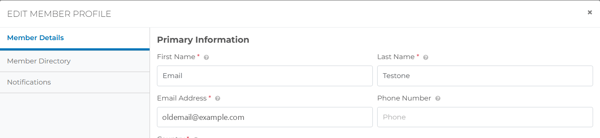
- Delete the current address and type the new email address.
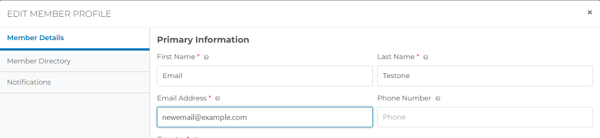
- Scroll to the bottom of the window and click Save.

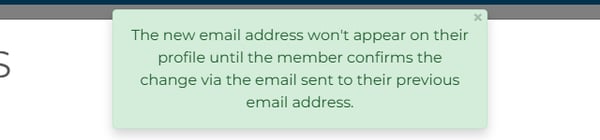
- A green message appears at the top of the screen: “The new email address won’t appear on their profile until the member confirms the change via the email sent to their previous email address.” The same message appears for every member, whether or not they have logged in.
What Happens Next
What happens after you click Save depends on whether the member has ever logged in. The Last Login column on the Members list shows N/A for members who have never logged in.
The member has never logged in
The new email address takes effect right away. The member’s profile and the Members list show the new address immediately, and the member does not need to confirm anything. This is the usual situation when you import members with a placeholder address (such as an @example.com address) and replace it with the member’s real address before the member’s first login. The system sends the same notification email to both the previous address and the new address:
Subject: Changes have been made to your HOA Start account.
An admin has updated your HOA Start email address.
Your email has changed from [previous address] to [new address]. If you didn’t approve of this change, please contact your administrator.
[Login button]
The member has logged in before
The member’s profile and the Members list keep showing the previous email address until the member confirms the change. The system sends a confirmation email to the member’s previous address (not the new one):
Subject: [First name], you’ve requested to update your e-mail address for your HOA Start online membership
A request has been submitted to update your HOA Start email address to [new address].
Please click the button below to confirm this change. If you didn’t approve of this change, ignore this email and the change will not take effect.
[Confirm Change button]
When the member clicks Confirm Change, an Update Email page opens and asks the member to confirm the new address. The member clicks Update.

The page then reads “Your email has been successfully changed. Please click below to log in.” From that point, the member’s profile and the Members list show the new address, and the member signs in with it.

The confirmation email tells the member that if they do not approve the change, they should ignore the email and the change will not take effect. Until the member clicks Confirm Change, the profile keeps showing the previous address.
The same confirmation applies when a member who has logged in changes their own email address from their profile. The confirmation email goes to the previous address, and the change takes effect only after the member clicks Confirm Change.
If the previous address is misspelled or the member cannot open it
The confirmation email goes only to the previous address on the profile. If that address is misspelled, or the member can no longer open it, the member never receives the email and cannot confirm the change. In that case, the admin needs to open a support ticket so HOA Start can correct the email address.
If You See “Invalid Email Address, Already Taken”
This red message appears when you click Save and the address you entered already belongs to another member record. The profile is not changed.
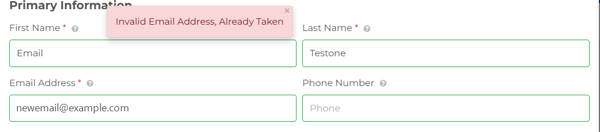
Do not delete a member to free up the address. Instead, find where the address is already in use:
- Click Membership, then Members.
- Type the email address you want to use in the search box and click Search.
- The member record that comes up is the one using that address. Open it and edit it if it needs to change.
- Return to the original member and click Save again.